Deploying an Application with a Database
In this example, we have an application connected to a database hosted on Neon. (Shoal will soon support its own managed databases.)
You need two components: a container node and a gateway node.
- Container node - links to your source code, runs and scales your container, and lets you add environment variables (like your database connection string).
- Gateway node - where you set the DNS name for your app.
Hit deploy, and it just works.
Step One
Drag a container node and a gateway node onto the canvas, then link them together. You can also add a comment box if you like.
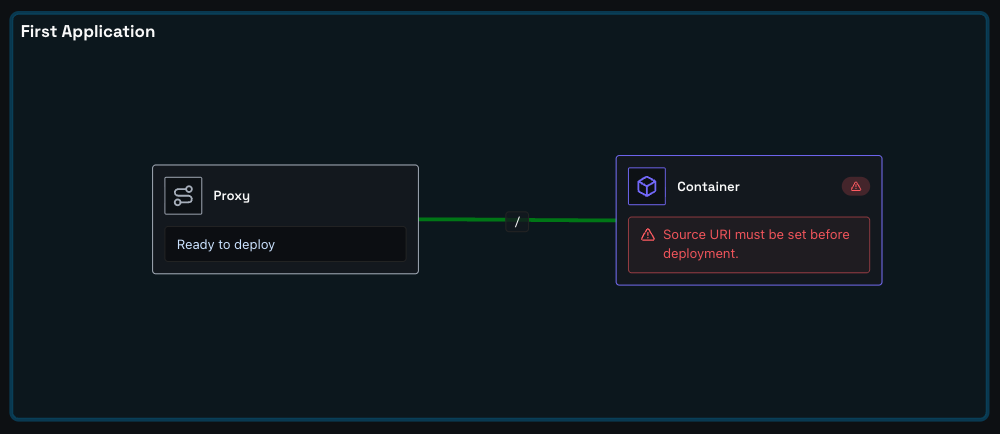
Step Two
Click the gateway node to open it, expand the Domain section, and enter the URL name you want. For example, entering shopping-test will make your app available at shopping-test.eu1.shoal.live. You can also point a custom domain at this address.
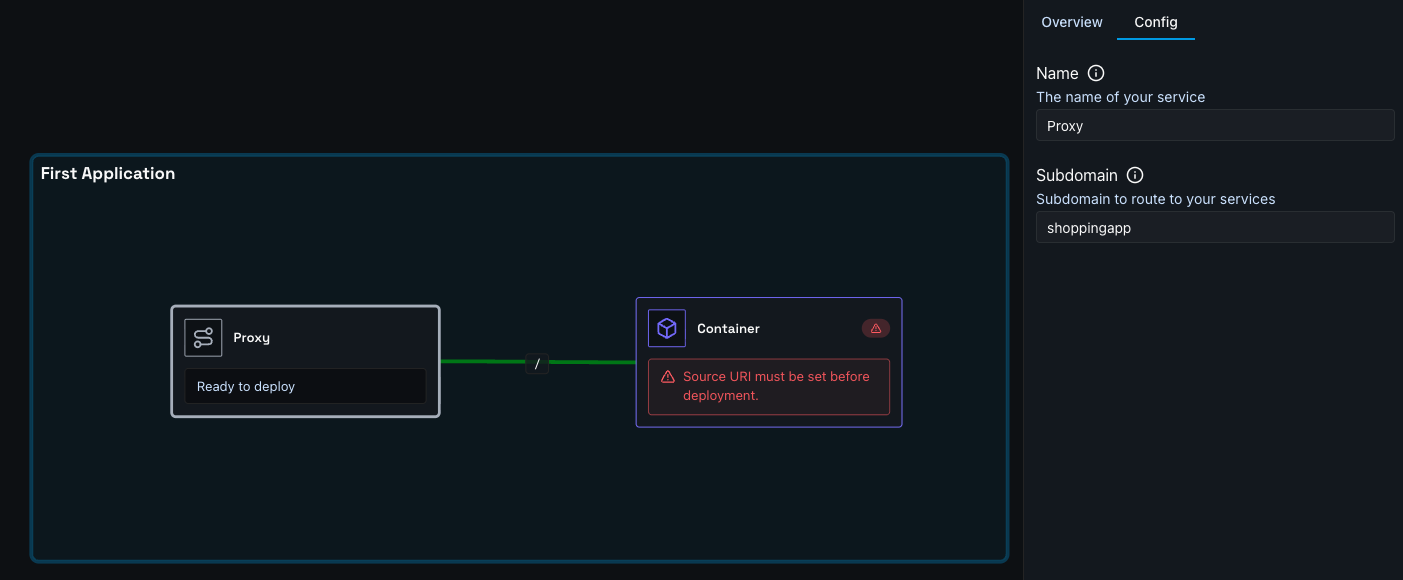
Step Three
Click the container node to open it, expand the Source section, and set up your source - either a GitHub repo or a file upload. If your project includes a Dockerfile, Shoal builds from it; otherwise Shoal auto-detects your stack and builds it for you.
You can add the environment variables via the container node's Env section, or via the settings page on the actual environment.
Add any environment variables your app needs here. For example:
DATABASE_CONNECTION = postgresql://neondb_owner:password@server.aws.neon.tech/neondb?sslmode=require
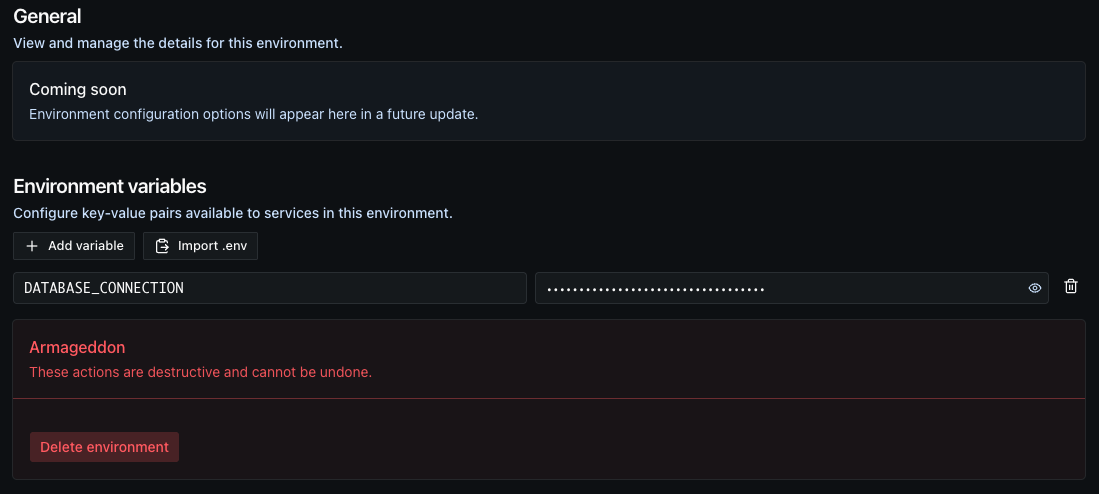
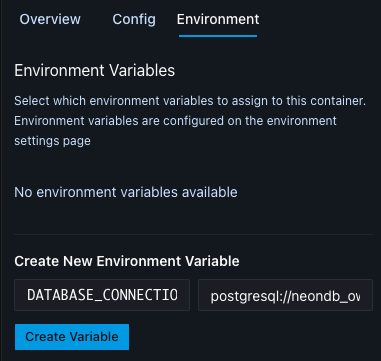
Environment variables are passed in at runtime only - they're stored securely and encrypted. You can also review, add, or remove them any time from the Settings menu in your project.
Step Four
Press Deploy. You can watch the deployment in real time via the Observability menu, or by clicking the link on the deploy button.
Done
Your app is live at the address you configured - connected to your database and running in a scalable, resilient, and protected environment.