Deploying an Application with Cloud SQL
In this example, we have an application connected to a managed Postgres database running on Google Cloud SQL. Shoal provisions and manages the instance for you - there are no Google Cloud credentials to connect and no console to visit.
Hit deploy, and it just works.
Step One
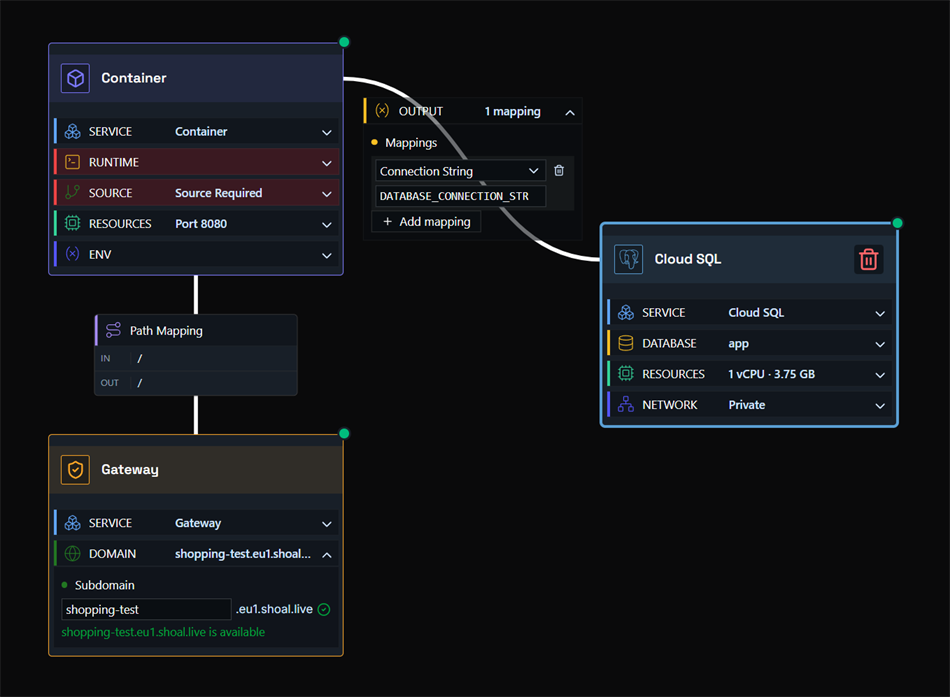
Drag a container node, a gateway node, and a Cloud SQL node onto the canvas, then link them together.
- Container node - links to your source code, runs and scales your container, and holds app environment variables.
- Gateway node - where you set your app's web address.
- Cloud SQL node - sets up your managed Postgres database and provides the output values you map into your container.
Step Two
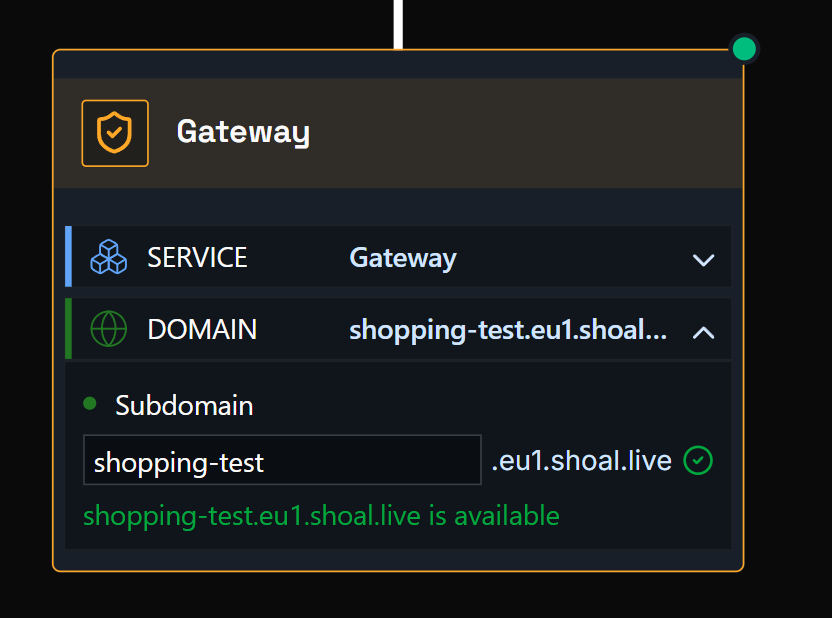
Click the gateway node to open it, expand the Domain section, and enter the URL name you want. For example, entering shopping-test will make your app available at shopping-test.eu1.shoal.live. You can also point a custom domain at this address.
Step Three
Click the container node to open it, expand the Source section, and set up your source - either a GitHub repo or a file upload. If your project includes a Dockerfile, Shoal builds from it; otherwise Shoal auto-detects your stack and builds it for you.
Step Four
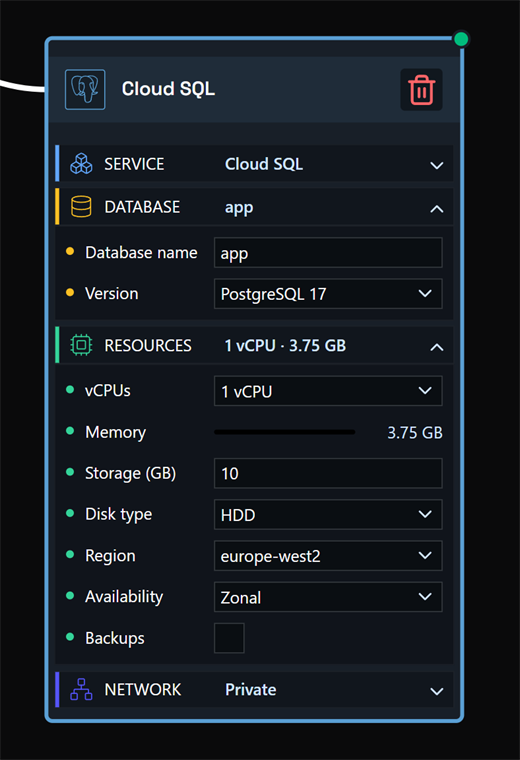
Click the Cloud SQL node to open it and fill in its settings:
| Setting | What it does |
|---|---|
| Database name | The name of the database created on the instance |
| Postgres version | The version of Postgres the instance runs |
| Instance size | How much compute the database gets |
| Storage size | How much disk space the database gets |
Step Five
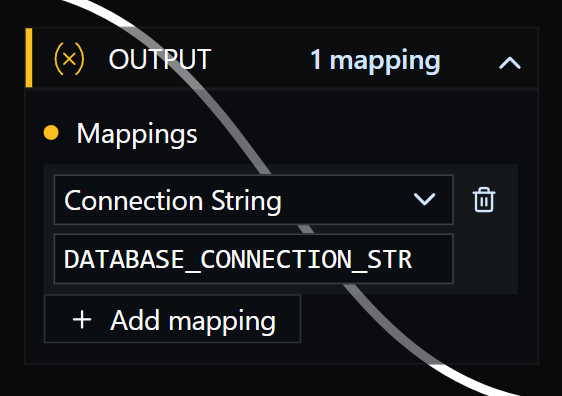
Map the Cloud SQL outputs to your container environment variables. The node exposes:
| Output | Typical use |
|---|---|
connection_string |
The full Postgres URL - usually mapped to DATABASE_URL |
host |
Database host, if your app expects separate values |
port |
Database port |
username |
Database user |
password |
Database password |
database |
Database name |
You can manage environment variables from the container node's Env section, or from the environment settings page. See the environment variables guide for more detail.
Step Six
Press Deploy. You can watch the deployment in real time via the Observability menu, or by clicking the link on the deploy button.
Done
Your app is live at the address you configured - connected to a managed Cloud SQL Postgres database and running in a scalable, resilient, and protected environment.